
Tweak These Graphics Settings in Call of Duty: Modern Warfare 4 for Optimal Performance
Explore the best graphic settings to tweak in Call of Duty: Modern Warfare 4 for enhanced performance. Discover tips for both mid-range and high-end PCs.
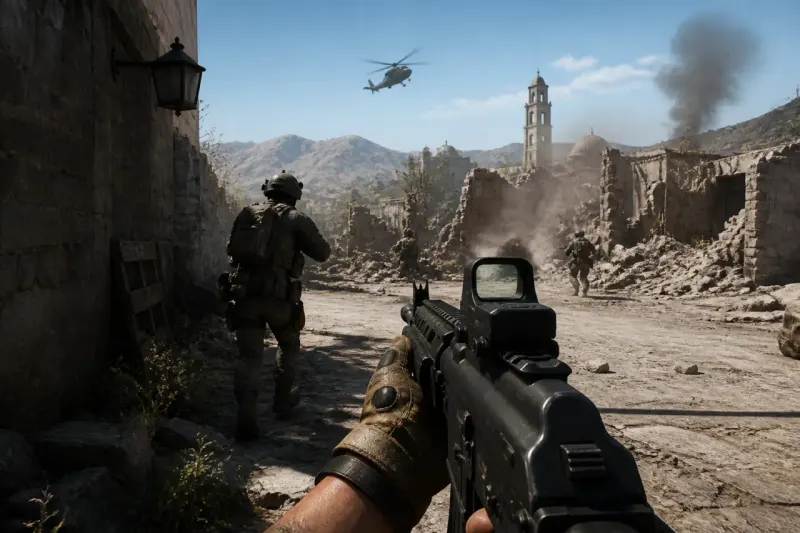
Balancing Performance and Visuals
When diving into the captivating world of Call of Duty: Modern Warfare 4, players naturally want both stunning visuals and smooth gameplay. After an exhaustive testing process, it was discovered that fine-tuning specific graphics settings can significantly improve performance. While the game is undoubtedly visually impressive, especially on high-end rigs, even mid-range setups can enhance their experience through strategic adjustments.
For gamers eager to jump right into the action, starting with the Balanced preset is recommended for mid-range PCs, while those equipped with high-end systems can comfortably select the Ultra preset.
Performance Across Graphical Presets
| Preset | Avg FPS | 1% Low FPS |
|---|---|---|
| Minimum | 146 | 119 |
| Basic | 137 | 114 |
| Balanced | 133 | 109 |
| Ultra | 107 | 85 |
| Extreme | 97 | 75 |
The tests revealed that while all presets deliver performance well above 60 fps, the most considerable improvement occurs when switching from Ultra to Balanced. Those with high-performance setups often see their frame rates soar beyond 100 fps across various presets, whereas performance differences among Minimum, Basic, and Balanced are fairly minimal.
Key Graphics Settings to Adjust
For gamers looking to squeeze every frame out of Modern Warfare 4, attention should be focused on these four settings:
- Detail Quality
- Shadow Quality
- Shadow Filtering Quality
- Terrain Quality
These adjustments can be found under Graphics > Quality > Advanced Quality Settings. Lowering these settings impacts the game's visuals minimally while significantly boosting performance.
Visual Comparisons of Graphics Settings
When comparing the differences between normal and high shadow settings, or between high and normal detail and terrain qualities, the change may look notable on paper, but the gameplay remains visually appealing even at moderate settings. For instance, when evaluating:
- Normal shadow quality versus high shadow filtering quality.
- High detail quality against normal detail quality.
- High terrain quality compared to normal terrain quality.
It becomes evident that while the game's beauty takes a minor hit, the overall experience is still immersive enough for most players.
Performance Impact of Settings
| Setting Adjustment | Avg FPS | 1% Low FPS |
|---|---|---|
| Ultra Preset | 107 | 85 |
| Four Key Settings Lowered | 124 | 101 |
Reducing just these four control settings resulted in a noticeable performance gain, increasing the average frame rate significantly. However, caution is warranted when lowering detail quality, as it could result in graphical issues, such as blocky representations of trees or other objects, which some players may find distracting.

Upscaling Effects on Performance
Upscaling options also play a crucial role in how the game renders graphics and affects performance. When enabling upscaling, the anticipated performance gain from lowering those four settings diminishes. In one specific test using an AMD Radeon RX 9070 XT, enabling upscaling resulted in an average frame rate moving from approximately 150 fps to around 160-165 fps in DMZ mode.
Recommendations for Different Game Modes
For competitive players focused on achieving higher frame rates in DMZ and multiplayer, the preferred approach is to utilize the Balanced preset while lowering detail settings to optimize performance. Dropping the resolution to 1080p can further enhance the experience, especially on 400 Hz monitors.
In contrast, campaign players who prioritize visuals may benefit from keeping the four key settings higher, favoring aesthetics over the slight performance hit, while simultaneously enabling Quality upscaling for a polished look.
Future Improvements and Updates
In the ongoing evolution of Modern Warfare 4, Nvidia is working on additional enhancements, such as the recent update introducing Advanced Shader Delivery. This technology augments gaming efficiency by pre-compiling shaders prior to launch, substantially reducing system RAM requirements. Players have reported about 7-8 GB less RAM usage which is a significant benefit during gameplay.
This advancement emphasizes the need for regular updates in gaming technology. By easing the strain on CPUs and enhancing overall user experience, players can expect not just improved game performance but also lower wait times when launching or updating games.
Key Takeaways
- Switching from Ultra to Balanced preset yields the highest performance boost.
- Lower the Detail Quality, Shadow Quality, Shadow Filtering Quality, and Terrain Quality settings for improved frame rates.
- Performance gains notable when lowering select graphics settings, increasing fps significantly.
- Enabling Quality Upscaling can reduce the performance impact of lowering graphics settings.
- Nvidia's Advanced Shader Delivery can enhance overall game performance, lowering RAM usage.
As players continue to customize their experiences in Call of Duty: Modern Warfare 4, understanding how these graphics settings interact can help tailor gameplay, ultimately leading to a more enjoyable and seamless gaming experience.
Frequently Asked Questions