
Maximize GTA 6 Performance: 5 Key Console Tips
Learn five essential tips to ensure your console maximizes performance while playing GTA 6 for the best gaming experience.

Unlocking Performance in GTA 6
GTA 6 launched on November 19, 2026, and it immediately became apparent that optimizing the gaming experience requires more than just an advanced console. Even though the game has set the bar high for graphics and gameplay, many players are discovering their consoles may not be extracting every ounce of performance available. Here are five targeted strategies to ensure your console isn’t limiting your GTA 6 experience.
1. Identify the Expected Frame Rates
One of the first steps in ensuring optimal performance is knowing what frame rate you should expect based on your console. Players using an original PS5, for example, have generally observed a consistent frame rate at or around 30 fps. However, frame dips can occur in intense situations, such as during explosive encounters or busy city scenes. This aligns with findings that show the PS5 may drop to as low as 23 fps under heavy load.
In contrast, the upgraded PS5 Pro demonstrates more stability, maintaining close to 30 fps except during chaotic scenes, where it may drop to around 24 fps. The Xbox Series X similarly holds mostly at 30 fps, but frame rates can dip during busy scenes, while the Series S tends to struggle significantly, fluctuating between 20 to 30 fps.
If players notice stuttering or choppy action during high-paced sequences like car chases or combat, this could indicate that their console is not performing at its best, even if the game should generally run smoothly during standard gameplay.
2. Keep Your Game Updated
As with most games post-launch, ensuring that GTA 6 is up-to-date is crucial for performance. Rockstar released its first patch on November 23, which addressed various bugs and crashes, but it didn’t specifically mention frame rates or performance fixes. To check for updates, PS5 users can highlight the game icon and press the Options button, while Xbox players can navigate to My games & apps, then select Manage.
Moreover, players should be cognizant of storage space as installations may require double the free space of the game size—GTA 6 is a massive 212GB. If the console is nearly out of space, it may refuse to install necessary updates, leading to compounded issues that can hinder gaming performance.
If you encounter errors like CE-108255-1, it’s advisable to follow Sony's recommended troubleshooting measures, including ensuring you have the latest system software or reinstalling the game if problems persist.
3. Restart Instead of Resuming
Using the Quick Resume feature on Xbox for seamless game transitions can lead to unintended performance spikes or even crashes. While it allows players to jump back into gameplay instantly, it can inadvertently cap frame rates when resuming a game. Instead, Xbox players should specifically quit the game before reopening it to ensure it loads afresh, especially after prolonged inactivity.
For clarity, this can be done by pressing the Xbox button, selecting the game, and navigating to the Quit option. The PS5 users can take similar steps by selecting the game, pressing Options, and choosing Close Game. Keeping these practices in mind can help maintain a smoother gameplay experience.
4. Regular Maintenance for Cooling
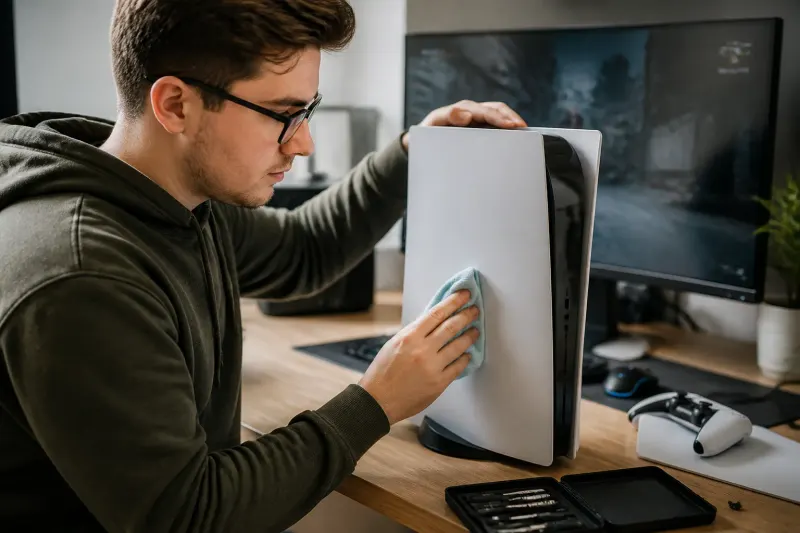
Over time, dust may accumulate within the console, leading to potential overheating issues. Both Sony and Microsoft recommend maintaining proper ventilation to avoid heat build-up, which won’t necessarily lower performance directly but can lead to hardware damage if not managed. Sony suggests keeping a PS5 around four inches away from walls and ensuring that it isn’t stored in cabinets or on plush carpets.
Cleaning can involve unplugging the console and wiping it down externally, but it might also be necessary to access internal components to clear dust catchers. Monitor the device for warning signs of overheating. If a PS5 experiences overheating too frequently, it may become prone to crashes, which have been reported in connection with GTA 6 since its release—possibly linked to liquid metal degradation around the processor.
5. Opt for Internal Storage Over External
Lastly, when it comes to installation, players should consider using the console's internal SSD for GTA 6. The game’s high data demand means that performance can degrade when using any drives outside of this. The PS5 requires a PCIe Gen4 drive with a sequential read speed of at least 5,500 MB/s; however, tests with the Xbox Series S have shown that performance may deteriorate even with an adequate external SSD during intensive scenes.
Transferring the game back to the internal SSD can sometimes alleviate issues related to stuttering or frame drops, ensuring a more stable gaming experience during dense gameplay moments. Moving games or applications on a PS5 is simple; navigate to Settings > Storage > M.2 SSD Storage and select Move Games and Apps.
Key Takeaways
- Frame rates fluctuate based on console usage; original PS5 drops to around 23 fps in heavy scenes.
- Keep GTA 6 updated for the best experience; check for updates regularly.
- Quit the game before resuming instead of using Quick Resume to prevent performance drops.
- Regularly clean consoles to improve airflow and prevent overheating issues.
- Installer performance benefits when using the console’s internal SSD over external drives.
Conclusion
In summary, maximizing performance in GTA 6 involves being proactive about your gaming environment. By knowing your expected frame rates, ensuring your game is current, making informed decisions about the Quick Resume feature, performing regular maintenance, and choosing the best storage solution, players can enhance their overall experience in the dynamic world of Grand Theft Auto 6. Each of these tips provides a straightforward approach to sidestep issues commonly faced, allowing players to enjoy Rockstar's latest epic as intended.
Frequently Asked Questions