
10 Crucial Mistakes to Avoid on Your Android Phone
Learn about ten critical mistakes Android users should avoid to enhance their device's performance and security.

Using an Android phone provides a robust experience, but many users inadvertently make mistakes that can compromise their device's performance and security. Whether someone is new to Android or has been using it for years, several common missteps can hinder the overall experience. Here are ten critical practices to avoid to keep an Android phone running smoothly and securely.
1. Skip Software Updates
Why it's bad: Ignoring software updates is one of the most detrimental mistakes Android users can make. Software updates not only introduce new features but also patch critical vulnerabilities that hackers may exploit. If a user falls too far behind on updates, they could find that key security-sensitive apps like banking or wallet services stop functioning.
Who says so: Google's Android Security page outlines vulnerabilities and their importance, with patches often developed in response to active threats rather than theoretical ones. Google shares detailed information about these vulnerabilities confidentially with device manufacturers for 90 days, allowing time to develop effective patches before disclosure.
Best practice: Always install updates as they become available and enable automatic updates for apps via the Google Play Store.
2. Neglect Basic Android Maintenance
Why it's bad: Failure to maintain Android devices can lead to slowdowns. When too many applications run simultaneously, the phone struggles to balance between storage and RAM, leading to a state known as memory thrashing, which drains power and heats up the device.
Who says so: Technical insights on Android maintenance are available via the Android Open Source Project, which describes how the low memory killer daemon functions within the system.
Best practice: Restart devices periodically to clear RAM and ZRAM. Close heavy apps when not in use and uninstall applications that are no longer needed.
3. Install Apps from Untrustworthy Sources
Why it's bad: Downloading apps from unverified sources is a significant security risk, as malicious apps can exploit vulnerabilities in the operating system. Unsanctioned apps often gain accessibility permissions that allow them to perform harmful actions without the user’s knowledge.
Who says so: Google Play Protect detected more than 13 million malicious apps from third-party sources in 2024 alone, underscoring the risk involved.
Best practice: Always download apps from trusted sources such as the Google Play Store, and exercise caution when considering third-party sites.
4. Disable Android's Security Protections
Why it's bad: Disabling built-in protections like Google Play Protect can expose devices to severe risks, including the installation of malicious software. Warning prompts to disable protections are common indicators of scams.
Who says so: Google Play Protect has been part of the Android infrastructure for nearly a decade, providing essential security updates and checks.
Best practice: Keep Google Play Protect enabled and be wary of prompts suggesting its disablement.
5. Root Your Phone Without a Good Reason
Why it's bad: Rooting might seam appealing for tapping into advanced features or removing bloatware, but doing so compromises the phone’s security. Root access can lead to the failure of crucial functions like Google Play Integrity, breaking the relationship with financial applications.
Who says so: Authorities like the National Institute of Standards and Technology (NIST) discourage rooting due to the security implications involved.
Best practice: Unless necessary for development or specific needs, users should refrain from rooting their devices.
6. Use Advanced Tools That You Don't Understand
Why it's bad: Engaging with advanced settings like USB Debugging without proper knowledge can expose devices to security threats and system vulnerabilities, especially if users neglect to disable them afterwards.
Who says so: Google allows advanced features in Developer Mode but warns about understanding the implications of those settings.
Best practice: It's crucial to revert advanced settings once done, following all instructions carefully and avoiding features that remain unclear.
7. Use Public Wi-Fi for Sensitive Matters
Why it's bad: Public Wi-Fi networks are often unsecured and can expose users to attacks. Users might unknowingly connect to fake networks that resemble legitimate ones, leading to potential data breaches.
Who says so: Cybersecurity agencies continue to warn users about dangers associated with public Wi-Fi networks, emphasizing the risk of snooping.
Best practice: Always use a VPN when accessing public Wi-Fi to layer security and avoid sensitive actions on such networks.
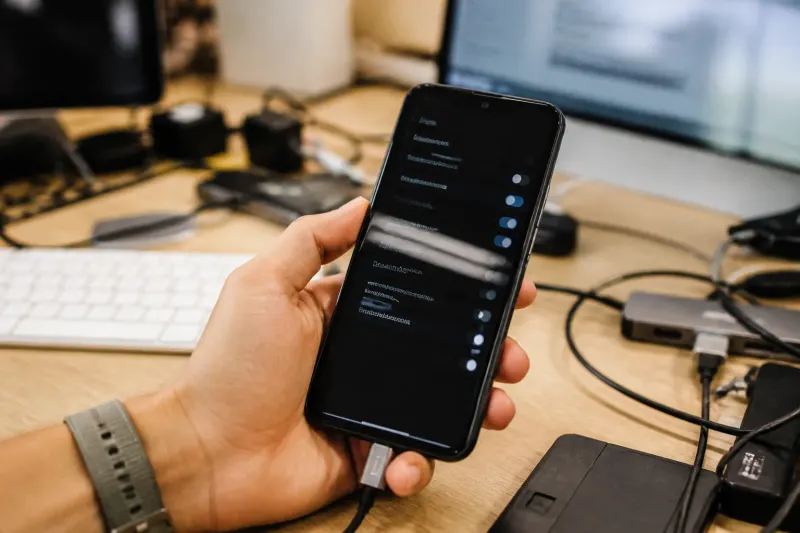
8. Plug Your Device into Untrusted Ports
Why it's bad: Using untrustworthy USB ports can lead to data theft or the injection of malware. Devices prompt users to allow data connections, which can be exploited by malicious actors.
Who says so: The FCC has issued warnings against using unknown USB ports, citing potential juice jacking attacks as a theoretical threat.
Best practice: Charge devices whenever possible through trusted wall outlets or portable chargers rather than random USB ports in public places.
9. Ignore App Permissions
Why it's bad: Apps that request unnecessary permissions could pose a risk by gaining access to sensitive data and features. Particularly concerning permission types include Accessibility and Overlay permissions, which can be exploited by malicious apps to perform operations covertly.
Who says so: Android's permission management has been progressively tightened, with permissions revoked from inactive apps to enhance user security.
Best practice: Regularly review app permissions, removing those that are unwarranted or irrelevant.
10. Fail to Take Care of Your Battery
Why it's bad: Lithium-ion batteries degrade faster when subjected to extremes in charging. Overcharging or using low-quality cables can lead to overheating, damaging the battery and overall device health.
Who says so: Samsung and other manufacturers provide guidance on managing battery health, recommending keeping battery levels between 20% and 80% for optimal lifespan.
Best practice: Utilize built-in battery management features and ensure charging practices align with manufacturer guidelines to prolong battery life.
Key Takeaways
- Always install Android software updates promptly to maintain security.
- Avoid downloading apps from unverified sources to reduce security risks.
- Keep Google Play Protect enabled for optimal defense against malicious apps.
- Refrain from using public Wi-Fi for sensitive information without a VPN.
- Manage app permissions and regularly review them for unnecessary access.
By avoiding these mistakes, users can improve their Android experience, prolong device life, and enhance security. Ultimately, practicing good habits and staying informed about potential pitfalls can ensure that an Android device remains a reliable tool for daily tasks.
Frequently Asked Questions